Slack Integration
Argos integrates with Slack to keep your team aligned on visual changes and reviews.
It sends notifications and also unfurls Argos build URLs directly inside Slack.
Slack integration is available on Pro and Enterprise plans
What you get
- Automatic Slack notifications when builds are created, reviewed, approved, or rejected
- Rich previews when pasting an Argos build URL in Slack
- Fine grained control using Automations conditions
Slack notifications
Use Automations to post messages in the right channels at the right time.
Typical signals you may want to route to Slack:
- A build is ready for review
- Changes are requested
- A build is auto approved on main
- Only failed or blocking builds
Notifications include build status, branch, author, and a direct link to the build.
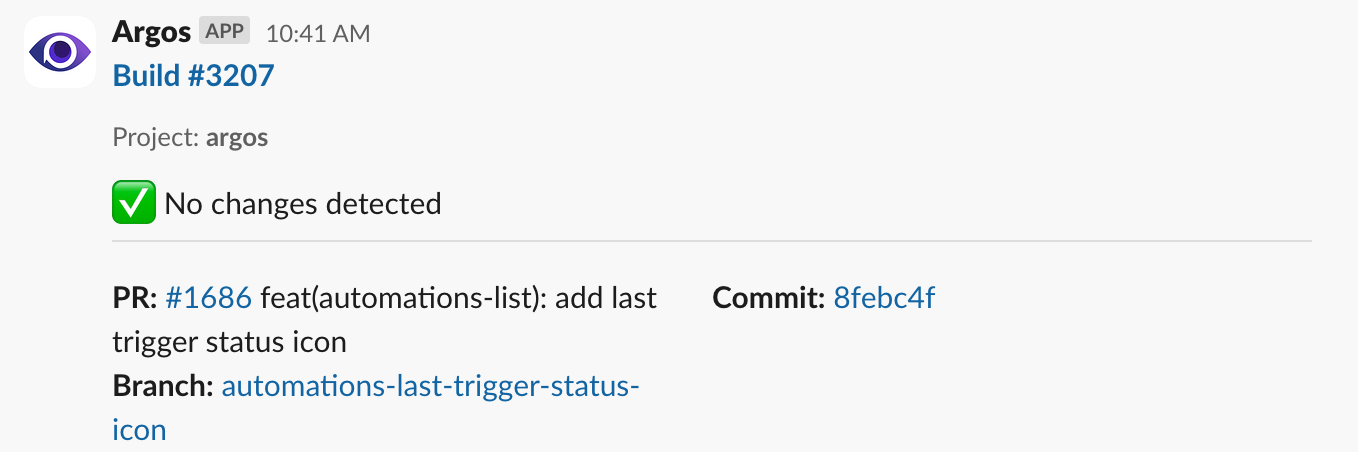
Example of a Slack notification sent by Argos
URL unfurling in Slack
When you paste an Argos build URL into Slack, Argos automatically unfurls it.
The preview includes:
- Build status and outcome
- Project and branch
- Direct shortcut to open the build in Argos
This works in messages, threads, and shared links, which makes reviews and handoffs easier without extra clicks.
Set up Slack integration
Set up a Slack integration to unfurl Argos build URLs.
- Verify that you have selected the correct team in the top, if not click the double arrow icon to select the right team.
- Go to the team’s Settings tab.
- Select the Integrations section.
- Click on Connect to Slack.
Set up Slack notifications
Set up a Slack notification rule using Argos automations.
-
Select a project in your Argos team.
-
Go to the Automations tab in your Argos project and click on New Automation.
-
Name your automation, e.g., "Notify Slack on build completion".
-
Under WHEN, select one or several events that will trigger the notification.
-
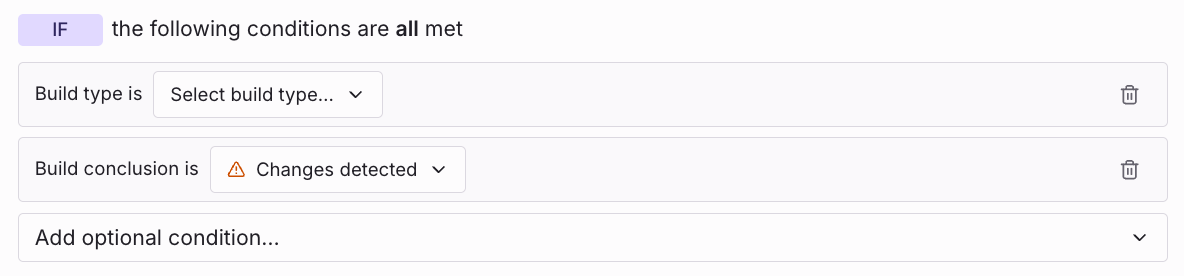
(Optional) Under IF, add conditions such as "Build type is check".
-
Under THEN, choose the action Send notification to Slack.
If this is your first time using Slack with Argos, click Connect to Slack and follow the connection flow.
-
Select the Slack channel and optionally provide the channel ID.
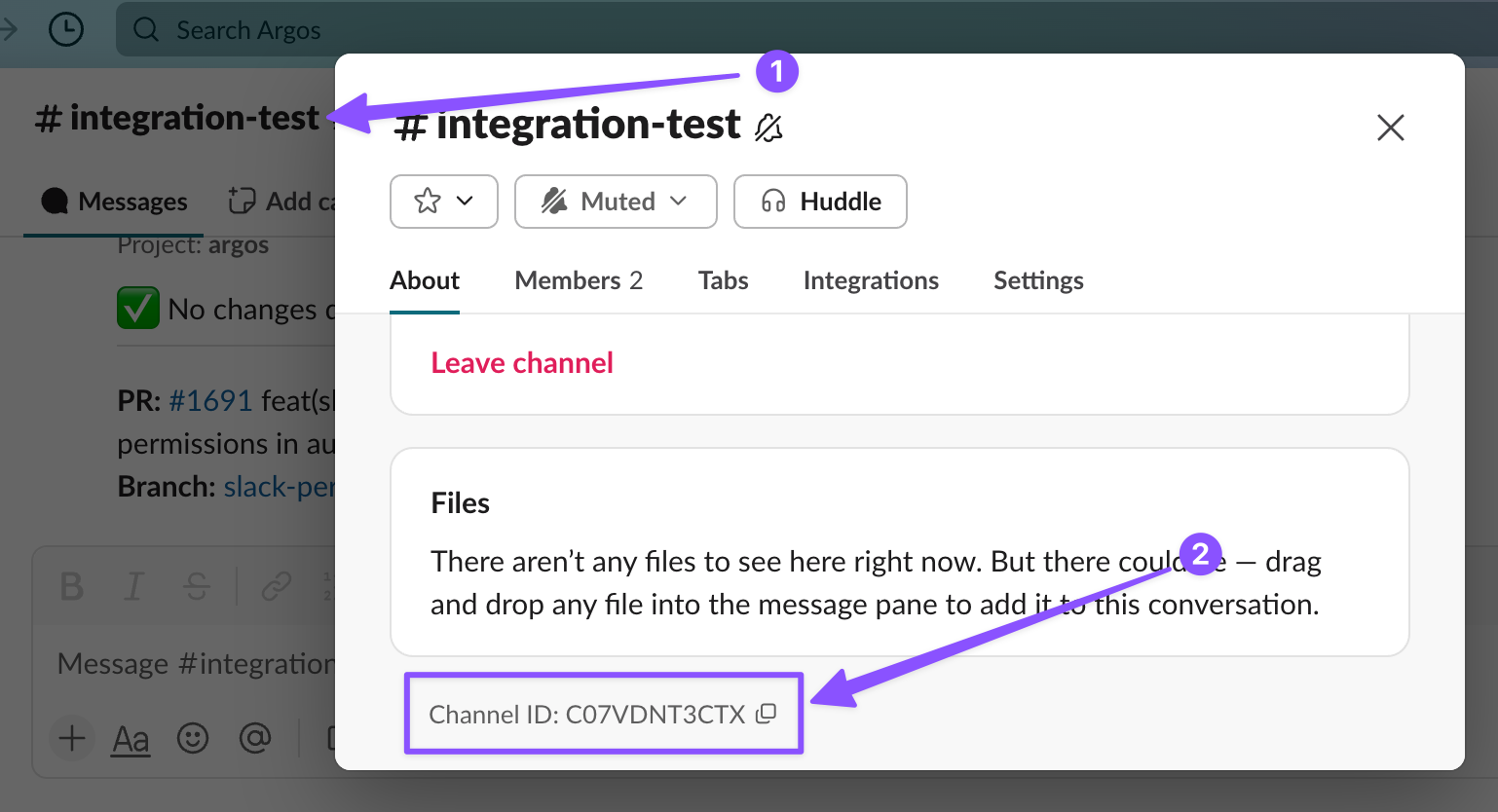
Finding the ID of a Slack Channel
-
Click Send test notification to verify the connection. A test message will be sent to the selected channel.
-
Click Create Rule to activate it.
Troubleshooting and Tips
- Make sure the Argos app is authorized in your Slack workspace.
- For private channels, manually invite the bot with
/invite @Argos. - Only Argos team admins can configure Slack integrations.
- You can test notifications anytime using Send test notification.
Need help setting up Slack integration? Reach out via Discord or contact support.