Test comments
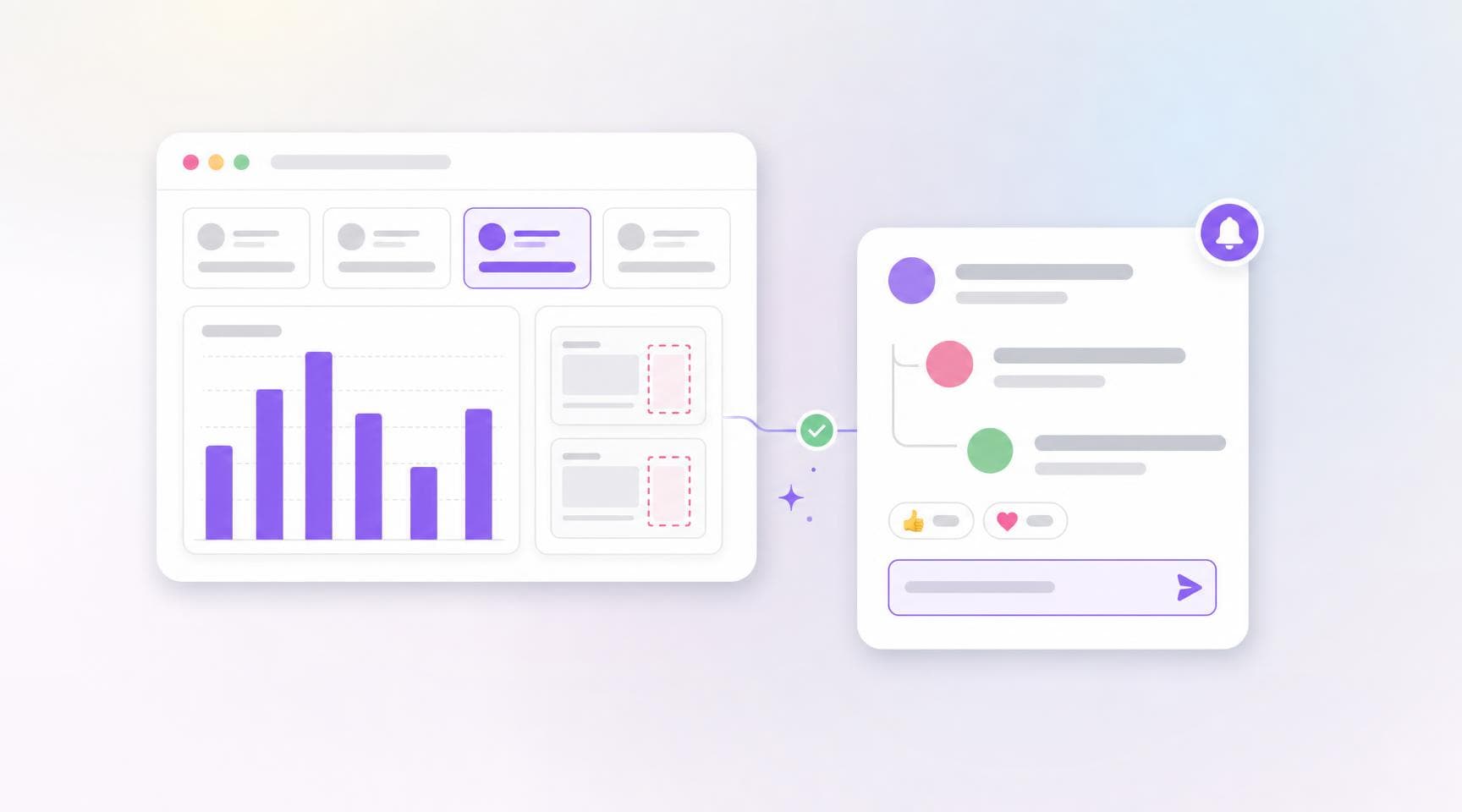
A flaky test outlives the build that surfaced it. Until now the only place to talk about one was a build review — a conversation that scrolls away with the build, while the test keeps failing for weeks. Test comments give every test its own thread, on the test page where you investigate it.
- Comment on the test, not the run — the Activity feed on a test page is for what belongs to the test itself: "flaky since we added the carousel", "waiting on the upstream fix", "safe to ignore until Q3".
- Threads, mentions, reactions — reply to start a thread, @mention a teammate, react with emoji, and resolve a thread once it's settled. Comments are Markdown, with
/slash commands for formatting. - Posted immediately — unlike a build comment, there's no pending review to batch it into. Everything updates live for everyone on the page.
- Follow a test — the bell in the Activity header subscribes you to new comments. Commenting follows it for you.
- From the CLI, API, and MCP —
argos test commentmirrors the build comment toolkit:list,create,edit,resolve,react,subscribe, and the rest.
argos test comment create <testId> --project team/project --body "Flaky since the carousel landed."Hand the flakiness to an AI agent
The Fix with AI card on a test page gives you a prompt to paste into Claude Code, Codex, Cursor, or any agent working in your repository. It names the test, carries the flakiness Argos measured, and tells the agent how to pull the recurring changes and their screenshots for itself — so it hunts for the animation, the unfrozen clock, or the unordered data instead of guessing. The card expands on its own when a test looks flaky, and Preview the prompt shows you what you're copying.
A test, its metrics, and its distinct changes are now in the public API too, which is what the agent reads:
argos test get <testId> --json
argos test changes <testId> --json
The same data is available as the getTest and listTestChanges MCP tools. Read more in Fix flaky tests with AI agents, or see the whole test page — metrics, change history, and discussion in one place.
Sign in with a passkey
Argos now supports passkeys. Sign in with Touch ID, Face ID, Windows Hello, your phone's screen lock, or a hardware key like a YubiKey — no password, nothing to phish, nothing to leak in a breach.
- No email step — select Continue with Passkey on the login page and your device lists the Argos accounts it holds a key for.
- One per device, or a phone for all of them — register as many passkeys as you like, and use a passkey on your phone to sign in on a computer that has none via a QR code.
- Manage them in settings — Settings › Authentication › Passkeys shows every key with when it was created and last used, and lets you rename or delete it.
Passkeys are available on every plan and sit alongside your existing login methods rather than replacing them. Note that a passkey signs you into Argos but does not satisfy a team that enforces SAML SSO.
Ignored changes on the test page
The changes explorer now has an All / Ignored toggle, so you can see what Argos is skipping for a test and reconsider it. Like the period selector, the filter lives in the URL — a link you share opens on the same view. See Ignored changes.
Fallback baselines
A screenshot with no match in the baseline build is reported as added, which is the wrong answer when it's really a variant of an existing one. The new baseName option takes a list of names to compare against, in priority order:
await argosScreenshot(page, "home-variant-b", {
  baseName: ["home-variant-b", "home"],
});
Argos compares against the first name that exists in the baseline, so A/B variants and themed screenshots show a real diff on their first run. Learn more about fallback baselines.
Also in this release: the account and project Tests lists load significantly faster, Playwright warns when the recommended Chromium launch options are missing, and subset builds no longer count removed snapshots as changes.