Area comments
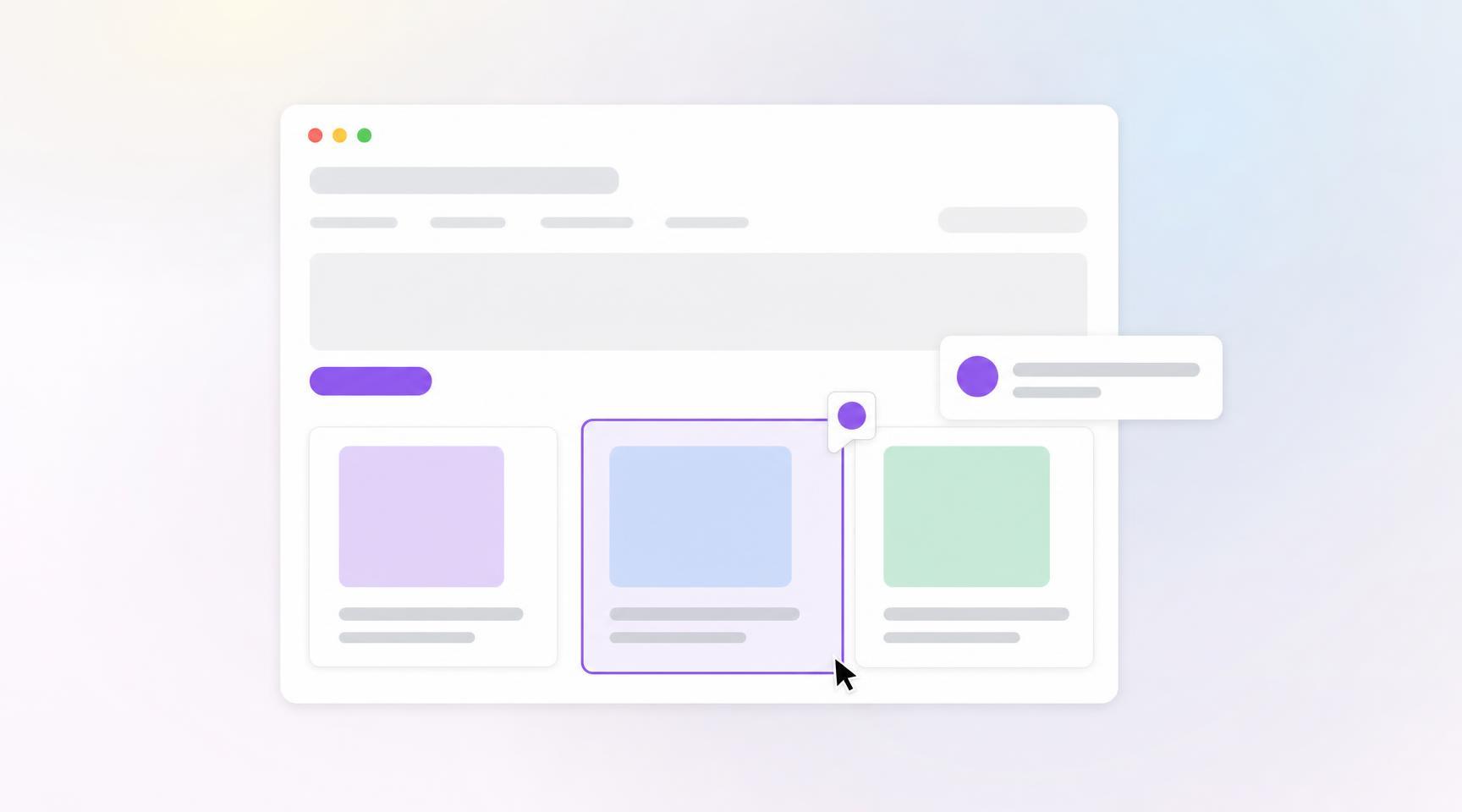
Feedback is often about a whole card, a header or a section, not one pixel of it. A pin made you pick a spot inside it and hope the reader saw the rest. Area comments mark the whole thing.
- Drag to select: with the comment tool on, drag over the image to comment on that area. A click still drops a pin on a single spot.
- On builds and shared media: area comments work on build snapshots and on media share pages, with the same threads, mentions and reactions as any other comment.
- Out of the way: the pin sits on the area's top-right corner, so it never covers what the comment is about. The outline shows when you hover the pin or open its thread.
- Agents see the area too: an area is stored in normalized coordinates,
xandyfor its top-left corner plus itswidthandheight. The REST API, the MCP server and the CLI return it with the comment, so an agent knows exactly which part of the screenshot a reviewer means.
Agents can post one as well. With the CLI, pass the area as four numbers between 0 and 1:
argos comment create https://app.argos-ci.com/acme/web/builds/42 \
  --diff 1234567 \
  --anchor-area 0.1,0.2,0.3,0.25 \
  --body "This card needs more room."
Update @argos-ci/cli to the latest version to get --anchor-area. Learn more in the review documentation and the CLI reference.
Also new
- Several project tokens per project: each token has its own permissions and an expiration (90 days by default), so you rotate one without downtime. Account admins get an email a week before a token expires, and
argos project token create,listandrevokemanage them from the CLI. - Billing role: a team member with the Billing role manages the plan, invoices and spend limit and receives the billing emails, without being an owner.
- GitHub deployments: Argos reports each deployment to GitHub, so the pull request shows View deployment and
deployment_statusworkflows run once the preview is live. Turn it off per project if you don't need it. - Pending while awaiting review: a project can report changes awaiting review as pending (
runningon GitLab) instead of failed, so visual changes stop reading as a broken build. - No auto-approved branch: turn off auto-approval so every build needs a review, base branch included, from the project settings or with
argos project update --auto-approval false. - Screenshot descriptions: pass a
descriptionwhen you take a screenshot, and reviewers read it at the top of the build sidebar. - Back to the pull request: once you approve or reject the last build of a commit that needs you, Argos offers to take you back to the pull request.
- Plan limit emails: on a flat-rate plan, owners and billing members get an email at 90% of the included screenshots, and again when builds start being rejected.
- GitLab permission alerts: when GitLab refuses Argos's commit statuses, team owners get an email naming the permissions the token's user needs.
- Join your team at signup: signing up for team projects, or through SAML SSO, shows the team already open to your email domain before creating a new one.
- Analytics in your time zone:
argos analytics --time-zone Europe/Parisand the API'stimeZoneparameter cut days at your local midnight, like the Analytics page.
In the SDKs, element screenshots take a padding option to include shadows and focus rings (Playwright, Puppeteer, Cypress and Vitest). Cypress and argos upload --ignore-upload-failures can keep CI green when an upload fails. Storybook and Vitest name screenshots per browser when a run captures several browsers, and Chromium names stay the same so baselines carry over.