Step-by-step guide: reviewing Argos builds with AI agents
A comprehensive walkthrough on setting up AI agents to inspect and review visual changes in Argos builds using the CLI and the open-source skills.

Visual regression testing is no longer a purely manual task. With the right setup, AI agents can fetch Argos build data, reason about screenshots in the context of a pull request, and even submit a build review on your behalf. This guide offers a clear, step-by-step process for enabling AI-assisted reviews in your workflow. It builds on the official AI agent review documentation and uses only commands and features that currently exist in Argos, ensuring every instruction is actionable.
Prerequisites
Before inviting an AI agent to review your builds, make sure you have the following items in place:
- A pull request with an Argos build – either through a status check or a bot comment. Start with the getting started guide if Argos is not already connected to your project.
- The Argos CLI – installed via
npm i --save-dev @argos-ci/clior usingnpx @argos-ci/cli. - Argos agent skills – install them if your assistant supports skills.
- Project token – allows read-only access to build data via
build getandbuild snapshots. - User token (personal access token) – required if the agent will submit a build review; obtained via
argos loginor from your Argos account settings.
Step 1: Install the Argos skills
The quickest way for an agent to understand Argos is through the open-source skills provided in the argos-javascript repository. Run these commands once in your development environment:
npx skills add argos-ci/argos-javascript@argos-cli
npx skills add argos-ci/argos-javascript@argos-pr-review
The first skill exposes CLI commands, flags and output formats; the second encodes a detailed review workflow. Together they teach the agent how to query builds and evaluate diffs.
Step 2: Configure authentication
Agents need credentials to read build data and (optionally) create reviews. Two types of tokens are involved; the CLI authentication documentation explains how Argos resolves them.
-
Project token – set this as an environment variable so the agent can fetch build metadata and snapshots:
export ARGOS_TOKEN=<project-token>This token must have access to the project where the build resides.
-
User token – only necessary if you want the agent to submit a build review. Run the CLI login locally to store a user token:
npx @argos-ci/cli loginThe
argos logincommand opens a browser for OAuth and saves your token to~/.config/argos-ci/config.json. Do not run it in CI; use environment variables or GitHub OIDC authentication instead.
Step 3: Start the AI review
With skills installed and tokens configured, open a new chat with your AI assistant and provide the pull request URL. If your assistant supports skills, use the $argos-pr-review syntax:
Use $argos-pr-review to review this pull request with its Argos build.
https://github.com/acme/app/pull/123
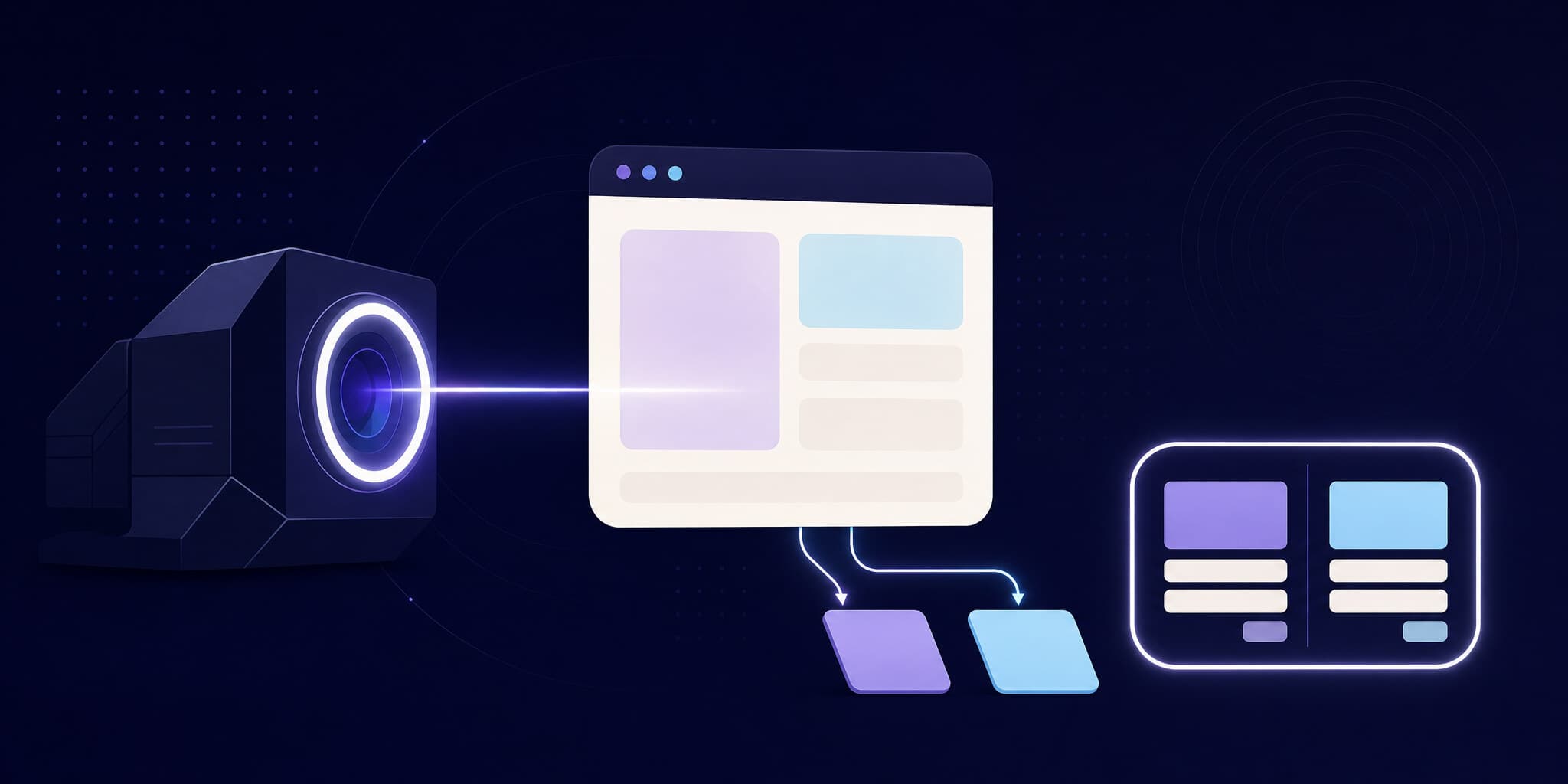
The agent will automatically locate the Argos build from the pull request status check or bot comment, fetch the build data via the CLI and follow the review workflow encoded in the skill.
What the agent does
Once invoked, the agent performs several actions to produce a meaningful review. The AI agents documentation outlines this sequence:
- Inspect the pull request context – examine the title, description, linked issues, branch name and relevant code changes.
- Find the Argos build – locate the build URL via the status check or bot comment.
- Fetch build metadata – call
argos build get <buildRef> --jsonusing the project token to retrieve status, branch, commit and stats. - Determine if review is needed – if the status is
pending,progress,no-changesoraccepted, the agent does not need to review; otherwise it proceeds. - Fetch snapshots needing a decision – call
argos build snapshots <buildRef> --needs-review --jsonto obtain only the diffs that require a decision. - Summarize visual changes – for each diff, the agent compares the
head.url,base.urlandurlmask to explain what changed visually. - Compare screenshots with intent – decide whether the visual difference matches the expected change derived from the pull request context.
- Suggest a conclusion – if all snapshots align with intent, the agent recommends approval; otherwise it recommends requesting changes and describes the problematic snapshots.
- Optionally submit the review – if authenticated with a user token, call
argos review create <buildRef> --event <approve|reject>to record the decision.
Alternative prompts and scenarios
When the agent cannot access the pull request
If the assistant cannot access the pull request (for example, due to repository permissions), you can still review the visual changes by providing the build URL and a brief description of the expected change:
Use $argos-pr-review to review this Argos build:
https://app.argos-ci.com/acme/app/builds/456

Expected change:
The login page was redesigned with social login options.
Without the pull request context the agent may still summarise what changed visually, but it will have less information to decide whether those changes are intentional. Including even a short expectation helps the agent align screenshots with intent.
When your assistant does not support skills
Some assistants cannot load skills. In that case, craft an explicit prompt that instructs the model to use the Argos CLI and follow a review process:
Review the visual changes in this pull request with Argos:
https://github.com/acme/app/pull/123

Use the pull request title, description, linked issue and code diff to understand the intended change.  Find the Argos build, fetch the build metadata, and fetch the snapshots that need review.  Use the diff mask, baseline file, current file and metadata as visual evidence.

First summarize what changed visually in the build.  Then compare the screenshots with the pull request intent.  If the snapshots match the intent, suggest approving the Argos build.  If they reveal a regression, suggest requesting changes and list the affected snapshot names.  If they look flaky, explain the flake signal and do not suggest approval until it is resolved.

After summarizing the visual changes, create an Argos build review with the appropriate conclusion.
This prompt explicitly tells the assistant to follow the same steps encoded in the skills. If review submission is needed, ensure the CLI is authenticated as an Argos user or provide a personal token via --token; see the project token and personal access token details.
CLI commands summary
For reference, here are the key CLI commands your agent will use:
| Purpose | Command |
|---|---|
| Authenticate as a user | argos login (interactive – store a personal token) |
| Read build metadata | argos build get <buildRef> --json |
| Read snapshot diffs | argos build snapshots <buildRef> --needs-review --json |
| Submit a build review | argos review create <buildRef> --event approve |
| Request changes | argos review create <buildRef> --event reject |
| Upload screenshots in CI | argos upload <dir> --token <project-token> |
| Finalize parallel builds | argos finalize --parallel-nonce <nonce> |
| Mark a build as skipped | argos skip |
These commands are described in the CLI documentation. Remember that reading build data requires a project token, while submitting a review requires a personal access token.
Why Argos is AI-ready
Argos isn’t just compatible with AI agents – it was designed with them in mind. The CLI outputs structured JSON so machines can parse it reliably. The build UI offers a Copy prompt button that generates an optimized agent prompt with the build URL and guidance. The open-source skills encode domain knowledge about how to interpret visual diffs and compare them with pull request intent. By following the step-by-step process above you can integrate these capabilities into your workflow today.
Argos still performs deterministic, pixel-perfect visual comparison; the agent simply uses the data to assist decision-making. If a change looks unstable, use Argos' flaky test detection signals before approving it. Ultimately the choice to approve or request changes remains yours, but with the help of an agent you can focus on the parts that need human judgement.